> ## Documentation Index
> Fetch the complete documentation index at: https://developers.webai.com/llms.txt
> Use this file to discover all available pages before exploring further.
# Pair with Contacts
> Generate an invite and pair with someone.
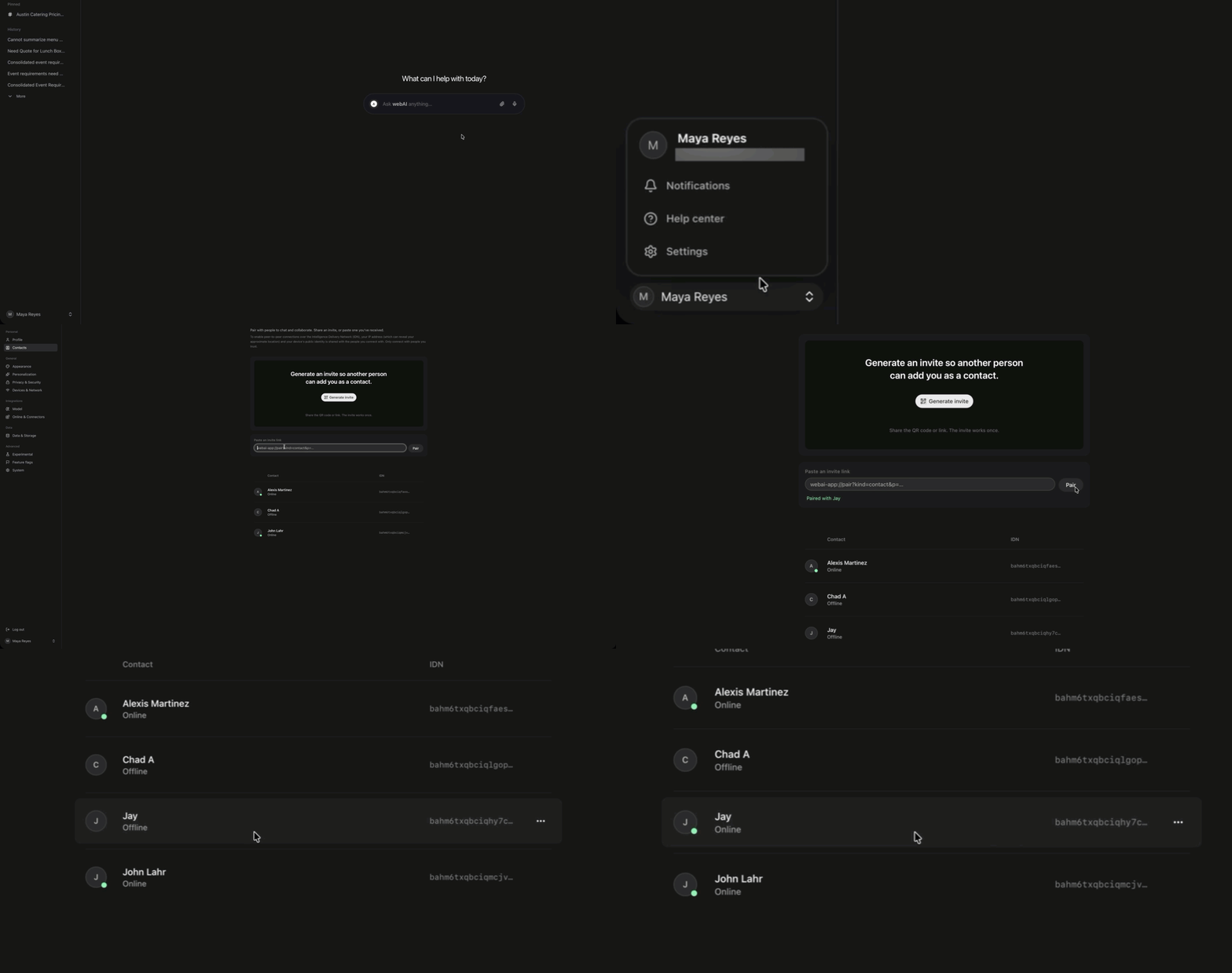 This walkthrough adds a person to Contacts with a one-time invite. To invite them to a Space after they are paired, see [Create a Space](/quickstart/general/space). For status, messaging, and remove, see [Contacts](/using-webai/contacts).
Click your name at the bottom of the sidebar, then **Settings**, then **Contacts**.
Click **Generate invite**. Share the QR code, or click **Copy invite link** or **Email**. The invite works once. A countdown shows when it expires.
Stay on Contacts until the other person pairs. They open Contacts, paste the link under **Paste an invite link**, and click **Pair**. Opening the invite link fills that field. They still click **Pair**.
They appear in your list with their name. They are not in a Space until an Admin invites them from that Space.
Leaving Contacts before pairing finishes can stop the invite. **Generate invite** and **Pair** need a connection. When the countdown ends, generate another invite.
If someone sent you an invite, paste it under **Paste an invite link** and click **Pair**. Stay on Contacts until you are connected.
This walkthrough adds a person to Contacts with a one-time invite. To invite them to a Space after they are paired, see [Create a Space](/quickstart/general/space). For status, messaging, and remove, see [Contacts](/using-webai/contacts).
Click your name at the bottom of the sidebar, then **Settings**, then **Contacts**.
Click **Generate invite**. Share the QR code, or click **Copy invite link** or **Email**. The invite works once. A countdown shows when it expires.
Stay on Contacts until the other person pairs. They open Contacts, paste the link under **Paste an invite link**, and click **Pair**. Opening the invite link fills that field. They still click **Pair**.
They appear in your list with their name. They are not in a Space until an Admin invites them from that Space.
Leaving Contacts before pairing finishes can stop the invite. **Generate invite** and **Pair** need a connection. When the countdown ends, generate another invite.
If someone sent you an invite, paste it under **Paste an invite link** and click **Pair**. Stay on Contacts until you are connected.